
How do I add items to my Wishlist?Updated 9 hours ago
How to Add Items to Your Wishlist
1. Navigate to www.thesak.com:
- Open your preferred web browser and go to www.thesak.com.
2. Browse Products:
- Explore the website and find the items you'd like to add to your wishlist.
3. View Product Details:
- Click on the product you're interested in to view its details.
4. Locate the Wishlist Icon:
- On the product page, look for the heart-shaped wishlist icon. This is located on the top right corner of the lead image.
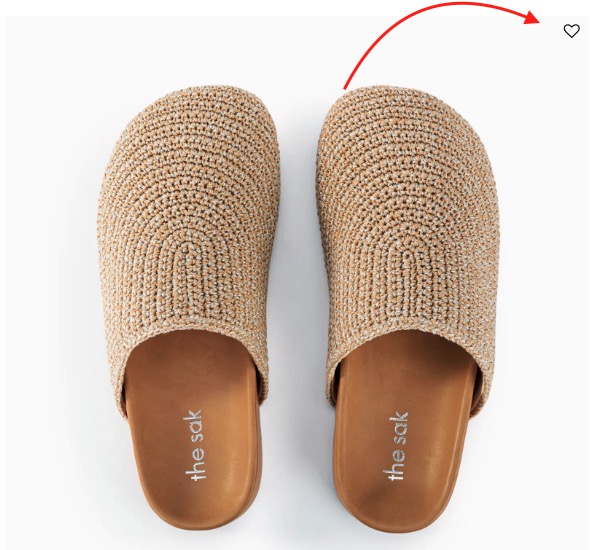
5. Click the Wishlist Icon:
- Click on the heart icon to add the item to your wishlist.
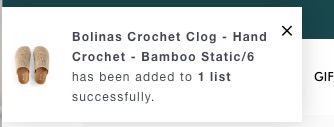
6. Confirm Addition:
- The heart will turn black  and a confirmation message will appear to indicate that the item has been successfully added to your wishlist.
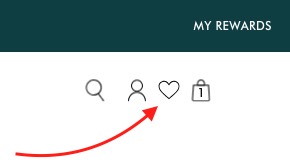
7. Access Your Wishlist:
- To view your wishlist, navigate to the top-right corner of the site where you'll find a heart icon. Click on it to see the items you've added.
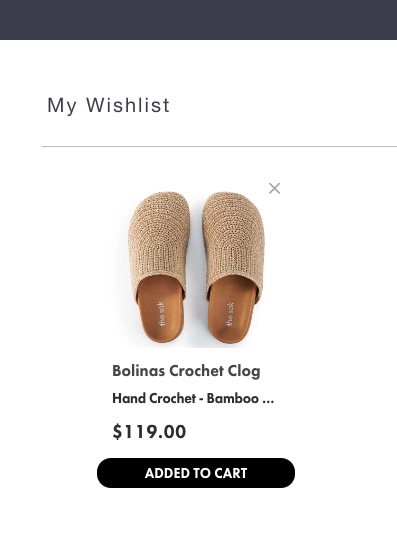
8. Managing Your Wishlist:
- From your wishlist, you can edit, remove, or share items as needed.
9. Creating an Account (Optional):
- While it's possible to use the wishlist feature without an account, creating one allows you to save your wishlist for future visits.
10. Access Wishlist Across Devices:
- If you're signed in, you can access your wishlist on any device by logging in to your account.
12. Ready to Checkout:
- When you're ready to purchase an item from your wishlist, simply click on the product, review the details, and proceed with the checkout process.
Should you encounter any difficulties or have further questions about using the wishlist feature on www.thesak.com, feel free to contact our customer support for assistance.